Search "approval workflow SharePoint" and you'll mostly find two things: Microsoft's own documentation, which is accurate but assumes you already know what you're doing, or step-by-step Power Automate tutorials that only gets you as far as the flow is built. These tutorials seldom address what you need to know six months later when your flow needs a fourth approver or a legal hold. Neither tells you when you've actually outgrown the DIY approach.
In summary: An approval workflow in SharePoint routes a document, list item, or page to one or more people for sign-off before it's published, shared, or actioned. You can build one two ways: through SharePoint's built-in modern approvals, enabled per library or list, or through Power Automate for anything with more than one stage or approver group. Both work well for a single, simple approval chain. Multi-stage approvals, cross-department routing, version-linked re-review, and audit-proof records are where native tools and Power Automate start to need real admin effort, and where dedicated document management platforms take over. This guide walks through both native routes in detail, where each one hits its limits, and when a dedicated third-party workflow platform is worth considering instead.
What is an approval workflow in SharePoint?
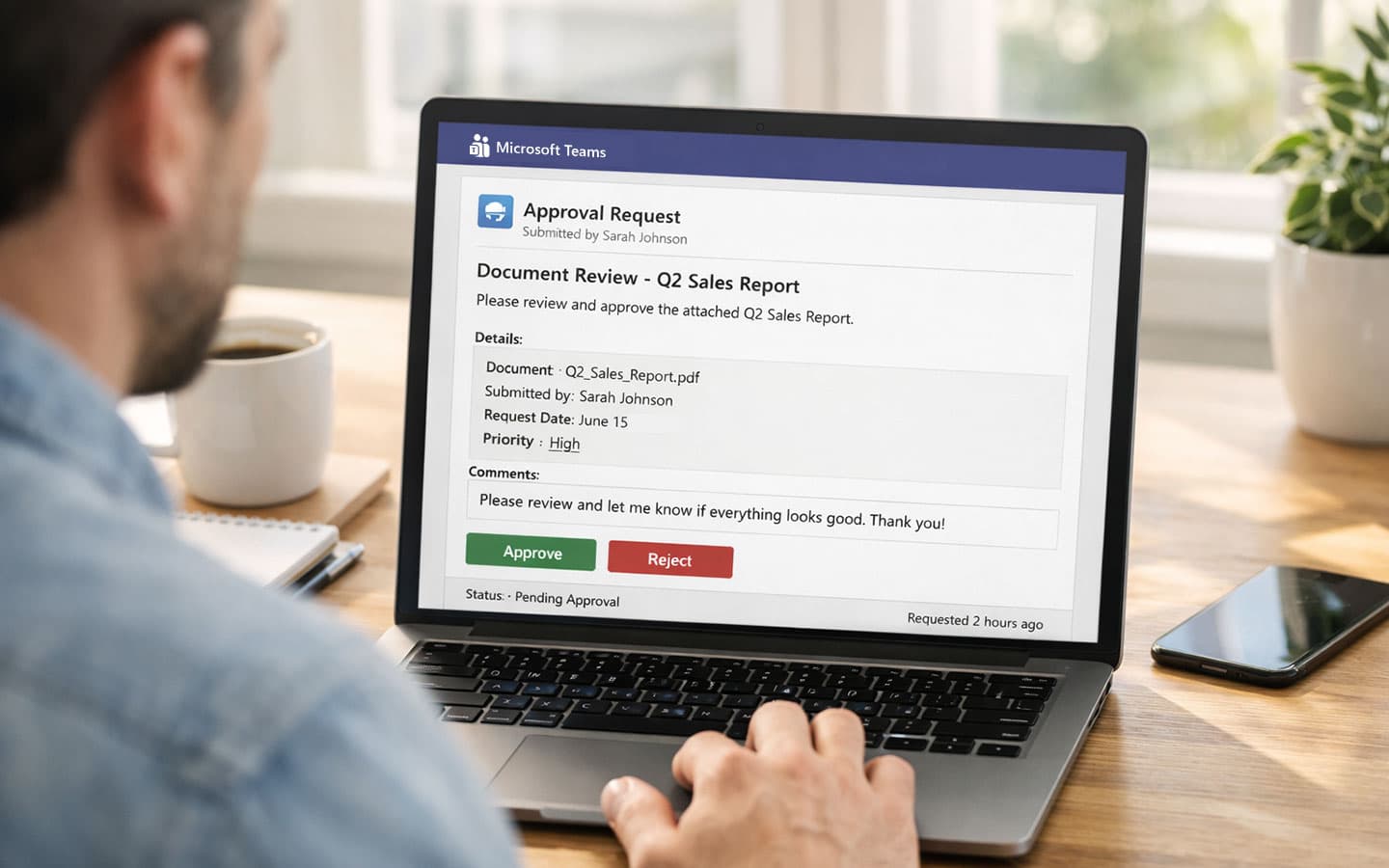
A SharePoint approval workflow - either a document approval workflow for files in a library, or a list approval workflow for items in a list - is a defined sequence that moves content from draft to published, with one or more people required to review and approve it at each stage. In SharePoint, that typically means a document library holds the file, a workflow (native or Power Automate) tracks its status, and approvers get notified, usually by email or Microsoft Teams when it's their turn to act.
The building blocks of the workflow are the same whichever route you take: a trigger (someone submits or uploads a document), an approver or approver group, an action (approve, reject, or request changes), and a status that updates once a decision is made. What changes is how much of that you have to configure and maintain yourself.
How do you create a native SharePoint approval workflow?
Creating an approval workflow in SharePoint today means using modern approvals, which replaced the old "Send for approval" workflow from SharePoint's 2010/2013 engines - it's what you'll actually find in a document library now.
- Open the document library, go to the Automate (or Integrate) dropdown in the command bar, and select Configure approvals.
- Toggle Enable approvals and hit Apply. This adds four columns to the library - Approval status, Approvers, Responses, and Approval creator - and you can set default approvers here if most requests go to the same people.

- To submit a specific file, select it and choose Request approval from the contextual menu.
- For a SharePoint document approval workflow with multiple approvers, add each one here and specify whether the request needs a response from all of them or just the first.
- Approvers are notified in the Approvals app in Microsoft Teams and can approve or reject with a single action from there.
- The status column updates automatically, and the file is locked from further edits while the request is pending.

This is a genuinely useful option for one-off approvals with a small number of reviewers, and it needs no licensing beyond what most organisations already have. The limits show up quickly, though: there's no built-in way to route the same document through several different teams in sequence, no automatic re-approval when the document is next due for review, and the columns show the latest status rather than a full compliance-grade history - for that, you're relying on the Teams Approvals app's own record.
Approving SharePoint pages is a separate setting. If you need sign-off before a news post or page goes live, that's a different toggle: go to Site pages library settings, then Versioning settings, and turn on Content approval. Once enabled, new or edited pages sit in draft until an approver publishes them - but this version doesn't support notifications or multi-stage approval, so anyone using it still has to know to check for pending pages.

It's also worth flagging a deadline here: SharePoint 2013 workflows - the older, classic engine many organisations built more complex approval logic on with SharePoint Designer - were fully retired from Microsoft 365 tenants on 2 April 2026. If you've still got 2013-based workflows anywhere, they've already stopped running. Microsoft's own guidance is to migrate to Power Automate or another supported workflow solution. If that's news to you, it's worth checking your tenant now rather than after something breaks.
How do you build an approval workflow with Power Automate?
For a SharePoint document approval workflow with Power Automate, this is Microsoft's recommended path once you go beyond the simplest single-approver case. It's also considerably more flexible.
- From the document library, or from Power Automate directly, create a new flow using the Start and wait for an approval action.
- Set the trigger - usually "when a file is created or modified" in a specific library.
- Choose the approval type: a single approver, everyone must approve (the standard setup for a SharePoint document approval workflow with multiple approvers), or sequential approval, where each named approver signs off in order before the request moves to the next.

- Add conditions if you need routing logic - for example, sending contracts over a certain value to a second approver, or routing by department using a metadata column.

- Configure notifications. Approvers get requests through Outlook, Microsoft Teams, and the Power Automate approvals center, and can act from any of them.
- Add a final step to update the item's status and, if needed, notify the requester of the outcome.
For a moderate number of flows, this is a solid setup. It's also where most organisations we talk to eventually land, because it's included with most Microsoft 365 licensing and doesn't need a separate platform. A Forrester study commissioned by Microsoft found that a composite organisation deploying Power Automate saw a return on investment of 248% over three years, largely from time saved on manual, repetitive process steps - approvals being one of the most common.
Where do native workflows and Power Automate start to break down?
Both routes are genuinely good for a handful of straightforward flows. The problems tend to show up once the number of flows, approvers, or document types grows.
A few patterns come up repeatedly in conversations with teams evaluating whether to keep building on Power Automate or move to something purpose-built:
- Flows break when people leave. A flow built around a named approver stops working, silently in many cases, when that person leaves the business or changes role, and nobody finds out until a document is stuck. This happens because a Power Automate flow has to be associated with an active user account and once that account is disabled, the whole flow itself stops running, not just the approval step.
- There's no real audit trail, only a run history. Power Automate logs whether a flow ran successfully, not a compliance-grade record of who approved what, when, and against which version, which is actually what most audits actually ask for. Even that basic log doesn't stick around: Power Automate only retains standard run history for 28 days, so any record of what happened is gone before most audit cycles come around. (Our reporting and audit trail page covers what a full compliance record actually needs to include.)

- Re-approval doesn't happen on its own. Neither native SharePoint nor Power Automate will automatically flag a document for re-review after twelve months. Someone has to remember, and in practice, that's usually where things slip.
- It doesn't scale past a handful of flows before IT owns a maintenance backlog. Once you're past ten or fifteen active flows, each with slightly different approver logic, updating them all when a process changes becomes a project in itself.
We used to tell most clients that Power Automate was the answer, full stop - it's included, it's flexible, why pay for anything else. That held up fine until we started working with clients running fifteen, twenty flows across different departments. The moment one senior approver left mid-process, or an auditor asked for a full history rather than a run log, we were the ones fixing it manually. That's when we stopped recommending Power Automate as the default for anything compliance-heavy and started being upfront with clients about where it runs out of road.
- Joe Perry, Technical Director, Content Formula
Native SharePoint vs Power Automate vs dedicated document management software
| Criteria | Native SharePoint approval | Power Automate | Dedicated document management software (e.g. Xoralia) |
|---|---|---|---|
| Setup effort | Minutes, built into the library | Low to moderate, needs a flow per use case | Simple configuration, reusable and quick to implement |
| Multi-stage, cross-department routing | Not supported natively | Possible, but each variation is a new flow to build and maintain | Built in, configurable without complex setup |
| Audit trail | Library version history only | Flow run history, not approval-specific | Full approval and version history, built for audit |
| Automatic re-review / expiry | Not available | Requires a separate scheduled flow | Built in, with escalation |
| Ongoing maintenance | Minimal but limited | Grows with number of flows and approvers | Centrally managed, no per-flow rebuilding |
| Licensing | Included with most Microsoft 365 plans | Included or low additional cost per user | Starts at $0.56 per user/per month |
Native SharePoint and Power Automate cost little beyond what most organisations already pay for Microsoft 365, and for a modest number of approval flows, that's the right SharePoint workflow approval process to stick with. Not every team needs a dedicated platform. The point where it stops being the right call is usually about volume and consequence: how many documents, how many departments, and how much it costs you if an audit can't reconstruct who approved what.
Curious whether your current setup has actually outgrown Power Automate, or whether it just feels that way? Our document workflow features page walks through what a purpose-built approval workflow looks like once you're past the point native tools such as Power Automate can comfortably handle.
When does it make sense to move to dedicated document management software?
Types of document that carry real compliance weight such as policies, contracts, SOPs, HR handbooks, and onboarding packs tend to be where the gaps described above cause the most damage; this is because these are the documents audits, tribunals, and regulators actually ask about, and the ones where approval processes need to be watertight. (See the full feature set that dedicated document management software typically covers.)
Most organisations we speak to need something more structured in place once they're managing this kind of document at scale across more than one or two departments, and once "who approved this and when" needs to be a confident five-second answer, not an afternoon spent reconstructing an email thread. Version confusion is a big part of why that answer is often so hard to get: Perforce research found that 47% of employees have opened a document only to realise they were working from the wrong or outdated version - and an approval flow that only tracks the publishing step, not which version a reader actually acknowledged, can't tell you whether that's happened to your own policies. That's a different job to routing a single invoice for sign-off, and it's the reason a category of dedicated document and policy management software - alongside compliance platforms like NAVEX PolicyTech, ConvergePoint, and DocTract - exists alongside Power Automate.
Xoralia is a no-code workflow and approval automation tool for Microsoft 365, built by Content Formula, a Microsoft 365 consultancy that's been building compliance and governance solutions on SharePoint since 2005. It's designed to sit natively inside SharePoint rather than as a bolt-on system with its own separate login and permissions model. James Buckley, Governance Officer, described the effect on his own organisation's process in a customer review: the software "streamlines our complex document approval process, ensuring easy version control" - removing, he says, any uncertainty over which version of a policy is the current one. The workflow builder itself extends the same approval logic covered above - multi-stage routing, escalation, automatic re-review - with the audit trail and reporting layer that native tools don't provide out of the box.
The most common feedback that I have from clients after implementing Xoralia is that they love the custom workflow functionality. After initially setting up workflows based on department specific review recipients or unique rules for group policies that require a more rigid approval process, they can simply leave the document updates to automation, saving them so much time and worry. Knowing documents are following the right path consistently, and having all the data available, filterable and accurate at every moment is the biggest audit relief for them.
- Amber Oakes, Product Manager, Xoralia
If your organisation is managing this manually today, the cost of doing nothing is considerable. It shows up as missed re-approvals, policies nobody can prove were read, and IT time spent patching flows that were never built to handle this many documents.
Ready to see what a dedicated approval workflow looks like?
If you're managing more than a handful of approval flows across departments, it's worth seeing how a purpose-built setup compares to what you have now. Start a free Xoralia trial or book a demo to see the workflow builder in action.
Frequently asked questions
Does SharePoint have an approval workflow?
What's the difference between a workflow and an approval process?
How do I set up document approval in SharePoint?
How do you send a SharePoint file for approval?
Can you do workflows in SharePoint without Power Automate?
Are SharePoint workflows going away?
What's replacing SharePoint's classic workflows?
About the author

Amber Oakes
Product manager
Amber Oakes is product manager for Xoralia at Content Formula. She has spent five years shaping the product - overseeing hundreds of implementations and feeding real-world client feedback back into what gets built next. Xoralia is a no-code workflow and approval automation tool built natively for SharePoint by Content Formula, specialists in Microsoft 365 digital workplaces since 2005.